An AI art generator can make the scene, illustration, or background for an ad. Start by deciding which parts of the picture it may invent. For a physical product, keeping the real product photo and generating the surrounding scene gives you more control over what the buyer sees.
The difficult part is often the handoff. You get an attractive image, then discover there is no room for a headline, the packaging is wrong, or changing the offer means generating the whole thing again.
This guide covers that image-making step: which online tools to consider, how to brief them, and how to finish the artwork. For software that handles broader ad production, use the AI ad creative tools comparison.
Choose an AI art generator by the image you need
Firefly, Midjourney, and Ideogram suit different parts of the job. This comparison uses their documented controls to suggest where each fits. It does not rank them by campaign performance.
| Your immediate job | Tool to consider | What to inspect before keeping the result |
|---|---|---|
| Create a photographic or illustrated scene with adjustable generation settings | Adobe Firefly | Composition, lighting, and the controls available for your chosen model |
| Explore a visual direction using reference images | Midjourney | Whether the reference influenced the scene without changing essential product details |
| Repair part of an image or extend its canvas | Ideogram Canvas | The edited boundary and any objects added near it |
Choose one for the first brief and count the cleanup time. Can you get the image into your ad layout without rebuilding it? A beautiful generation that needs an hour of repair may be the wrong choice for weekly production.
Adobe Firefly: start with the scene and composition
On the Firefly website, open Image, then Generate image. Choose a model and aspect ratio, enter your description, and generate a first set. Adobe notes that the available settings vary by model; controls shown for one model may be absent from another. Its image-generation guide documents the current flow, including content-type and reference controls.
For an ad background, describe the surface, lighting, viewpoint, and empty space you need. Put the result into the ad layout early. If the planned headline disappears against the scene, fix the composition before spending time on texture.
Midjourney: explore a direction with references
Midjourney separates Image Prompts from Style References. An Image Prompt influences content, composition, and color. A Style Reference guides the visual treatment, such as texture or lighting, without being intended to copy the objects in the reference.
On the website, upload an image through the Imagine bar and place it in the appropriate reference section. Describe the final scene in the text prompt. Midjourney explicitly treats these references as inspiration, so a product photo used as an Image Prompt is not a promise of an exact product match.
That makes it useful for exploring a campaign's visual direction. If a specific bag, bottle, or device must remain exact, assemble the approved product image into the selected scene afterward.
Ideogram Canvas: fix a local problem
Ideogram Canvas supports uploaded images, text-prompt generation, image editing, and exporting the composition. Its Extend tool expands an image beyond the original edges.
For a distracting object or a patch of unsuitable background, Magic Fill lets you mask an area and describe the replacement. Include some surrounding context in the generation window, then inspect how the new area joins the old one.
Keep an untouched copy of the source. If the repair introduces a strange shadow or an extra object, discard it and try a smaller edit.
Separate product facts from visual invention
Decide what stays fixed: your product photo, logo, approved copy, and any price or factual claim. Then name what the model can invent. That might be the backdrop or the surface beneath the product.
This is especially useful for packaging. A generated bottle can look convincing while changing the cap, label, or proportions. Put the real bottle on its own layer and inspect the surrounding image for reflections or shadows that contradict it.
The scene also says something about the product. A backpack floating in a pool suggests water protection even if the headline never mentions it. Use a setting that matches what you can actually show about the item.
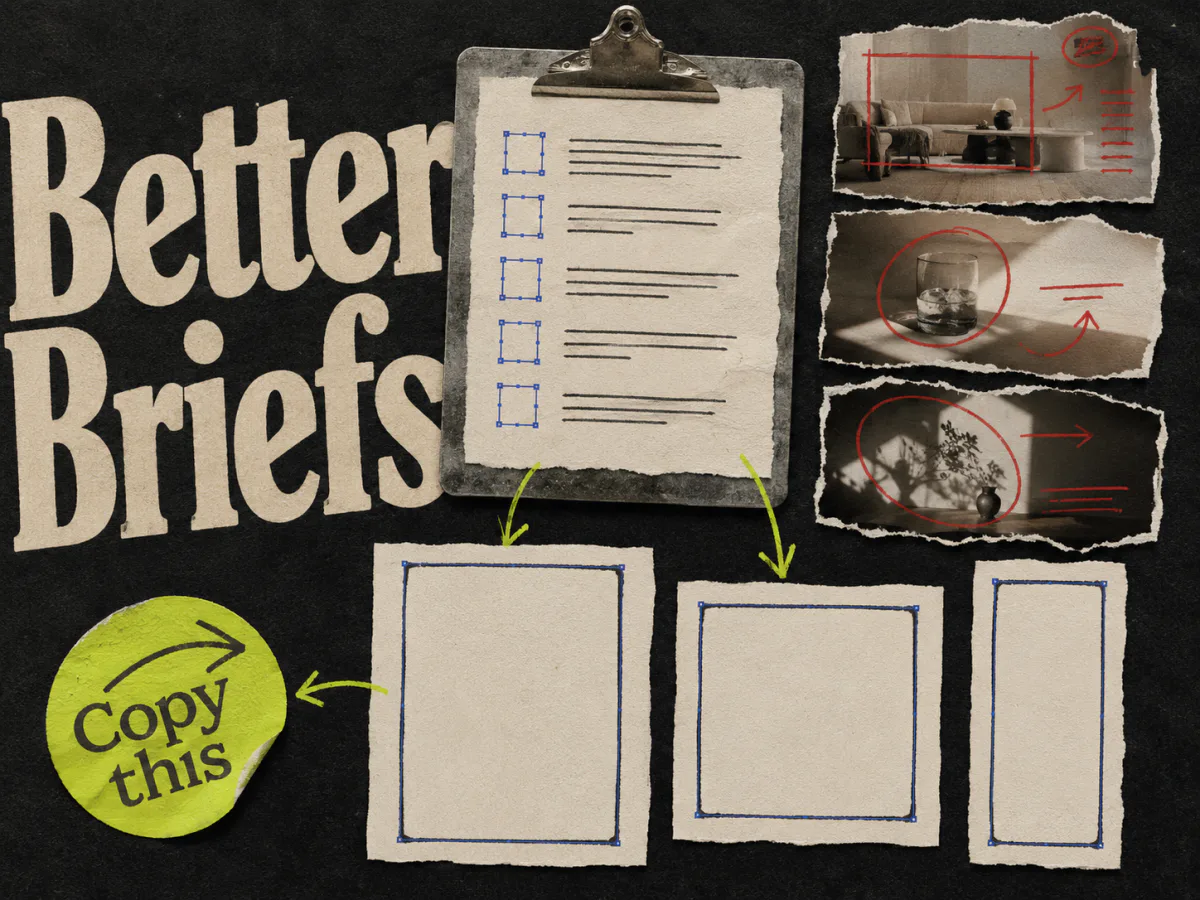
Collect the following before you start:
- An approved product image at the angle you plan to use
- The headline and offer, so you know how much space to leave
- A visual reference you have permission to use
- The intended crop and a short list of details that must remain unchanged
If the message is still vague, work through an ad creative brief first. Image generation will not settle an argument about what the ad should say.
Write prompts that leave room for the ad
A useful prompt describes a picture someone could draw: subject, setting, framing, light, and space for copy. Words such as "high-converting" do not tell the model where the product belongs.
The following are illustrative starting prompts, not tested campaign assets. Adapt the scene to your actual product and inspect each output.
A background for a backpack ad
Suppose you have an approved front-facing backpack cutout. Generate the environment separately:
A quiet train-station bench in soft morning light, photographed straight on at bench height. The right half of the bench is empty for a product to be placed later. A plain cream wall fills the upper-left area, with generous uncluttered space for a headline. Muted blue and warm gray palette. No bags, people, lettering, or signs.
After generation, place the real backpack on the bench. Check the scale and contact shadow. If the photo shows the bag from above but the bench is seen straight on, choose a different source photo or regenerate the background with a matching viewpoint.
An illustration for a software ad
An illustration can explain a workflow without pretending to be a product screenshot:
Editorial paper-cut illustration of a tangled pile of blank task cards feeding into a neatly arranged calendar grid. Cobalt blue, cream, and a small lime accent. The objects occupy the lower two-thirds of a portrait canvas. The upper third is plain cream for an editable headline. No text, numbers, logos, or interface labels.
Add the actual promise in your editor. If you need to show the software interface, use an approved screenshot instead of generated menus or controls.
Repair a crowded background
For a tool with masked editing, select only the area that needs clearing:
Continue the existing cream wall across this area. Match the surrounding light and surface texture. Keep this part of the wall empty.
A small repair is easier to judge than a fresh interpretation of the whole image. Still, compare the result with the original at full size before approving it.
Turn the selected image into an editable ad
Bring the chosen image into the design file before you call it finished. Add the real product image if you generated a separate scene, then place the headline and offer as editable text.
Keep the logo separate too. A later copy correction should take a text edit, without changing the photograph around it.
Use the Meta ad sizes guide to prepare the required compositions. A tall scene needs enough usable space around the subject to survive placement changes. Extending the background can help, but it cannot decide where the headline should move.
For the backpack example, the finished file might contain a station background, the approved bag cutout, a contact shadow, and editable copy. Save those parts together. The next designer should be able to replace the headline without reconstructing the ad.
Before export, look at it at roughly phone size. If the bench and wall attract more attention than the bag, simplify the scene or enlarge the product. High-resolution artwork can still make a poor small-screen ad.
Review the image before testing it
Judge the file against the brief while the source assets are open beside it.
| Check | A reason to revise or reject |
|---|---|
| Product accuracy | Changed seams, label text, material, color, or proportions |
| Physical fit | Floating objects, conflicting light, or an implausible reflection |
| Message | A scene that implies an unsupported feature or result |
| Readability | Busy detail behind the headline or an unclear focal point |
| Editability | Price, headline, or logo trapped inside generated pixels |
| Placement | Important content lost in the crop or covered in the preview |
Use the ad preview checklist for the final placement review. Keep the prompt, model name, selected source image, and edited design together so revisions have a clear starting point.
If you want to compare two backgrounds, keep the approved copy and product treatment consistent. If you also change the angle and offer, record that you are comparing different concepts. Either can be a useful test; the result needs to answer the question you actually asked.
Where Adrio fits
Adrio is useful when you are ready to work on the ad layout: research a reference, customize the image and text, and export creative for Meta placements.
Keep the image-making brief with the ad brief. A striking scene is worth keeping when it helps someone understand the product and leaves the team with a file they can revise.
FAQ
Which AI art generator is best for ad creatives?
Choose by the job. Firefly provides model-dependent generation controls, Midjourney has distinct image and style reference workflows, and Ideogram Canvas supports local edits and canvas extension. Evaluate the finished ad and its cleanup time before committing to a tool.
Can an AI art generator keep my product exactly the same?
Do not assume a reference image guarantees an exact match. For details that must stay unchanged, keep the approved product photo on a separate layer and generate the environment around it. Check the assembled scene too.
Should I generate the headline inside the image?
For an ad you expect to revise, editable type is easier to maintain. You can correct the offer, adjust the size, or translate the copy without regenerating the artwork.
Do AI-generated images make better-performing ads?
You need campaign results to answer that. Compare the finished creative against your existing ads using the outcome the campaign is meant to achieve. An unusual image may earn attention and still fail to sell the product.